
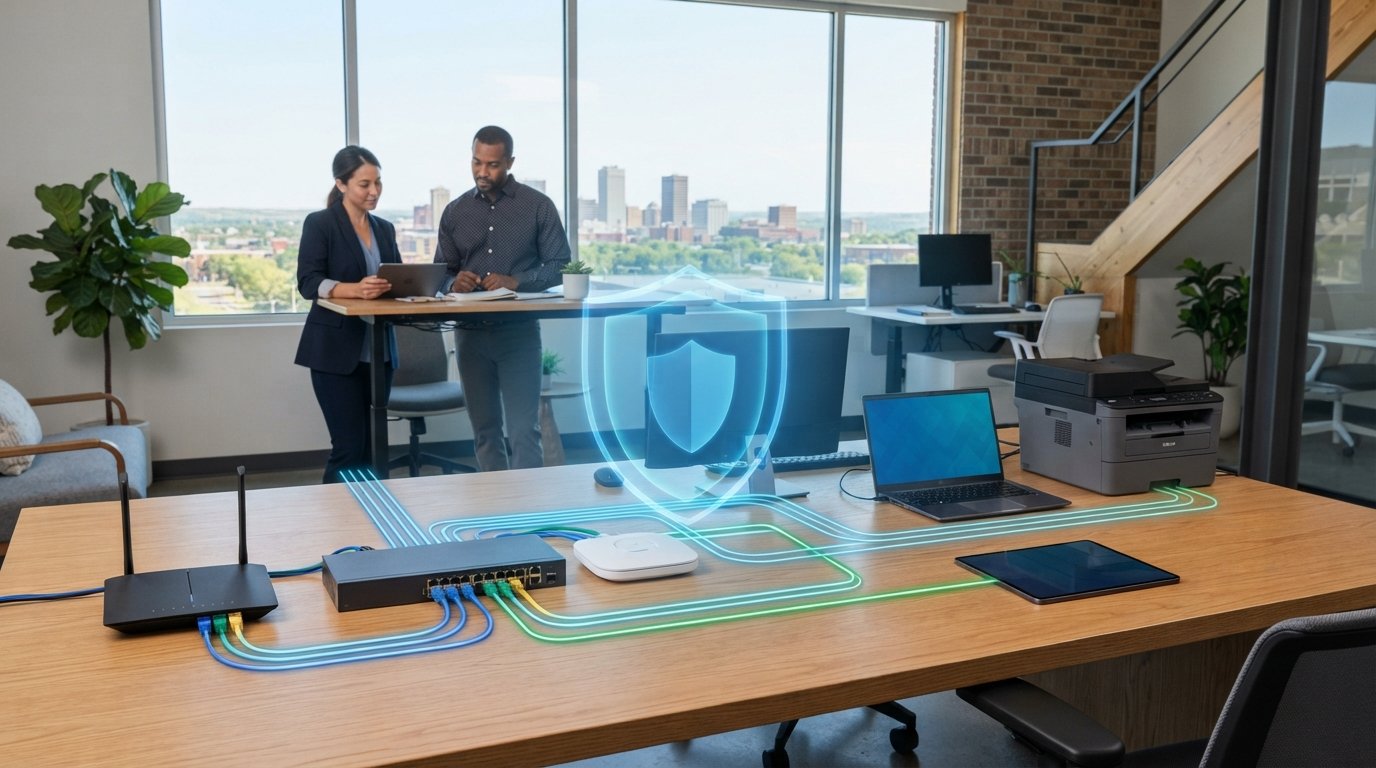
A secure business network setup starts with business-grade networking equipment: one or more routers, a switch sized for your connected devices, and Wi-Fi access points where needed. Configure the router’s firewall to allow only traffic initiated from the business network, separate guest Wi-Fi from internal systems, and limit access to approved devices and users.
It’s easy to focus on getting everyone online and put security settings off. But underpowered equipment, shared guest access, or unrestricted device connections can leave gaps in the network your business depends on.
This guide explains what a small-business network needs and how to configure its router, switch, Wi-Fi encryption, firewall, and device access more securely. You’ll also learn why business-grade equipment matters, how to keep personal devices separate from employee systems, and what to consider as your business grows.
Key Takeaways
- Choose a business-grade router and a switch with enough capacity for your devices and room to grow.
- Keep personal devices off employee systems by directing them to a separate guest network.
- Protect wireless access with encryption and isolate guest Wi-Fi from internal resources.
- Set firewall rules carefully and limit file sharing to the systems that need it.
- Review your network equipment and access controls as your business adds devices, users, or new needs.
Roles of routers in connecting networks and providing Internet access
A router connects networks, gives devices internet access, and directs traffic between your business network and outside services. Build your setup around business-grade equipment, controlled access, and a clear plan for updates.
Businesses with in-house staff who can configure, monitor, and update the network may manage it internally. If your team lacks the time or expertise, BENDIX imaging’s Managed IT Services and Network Security can help manage network operations and security.
-
Choose Business-Grade Network Equipment
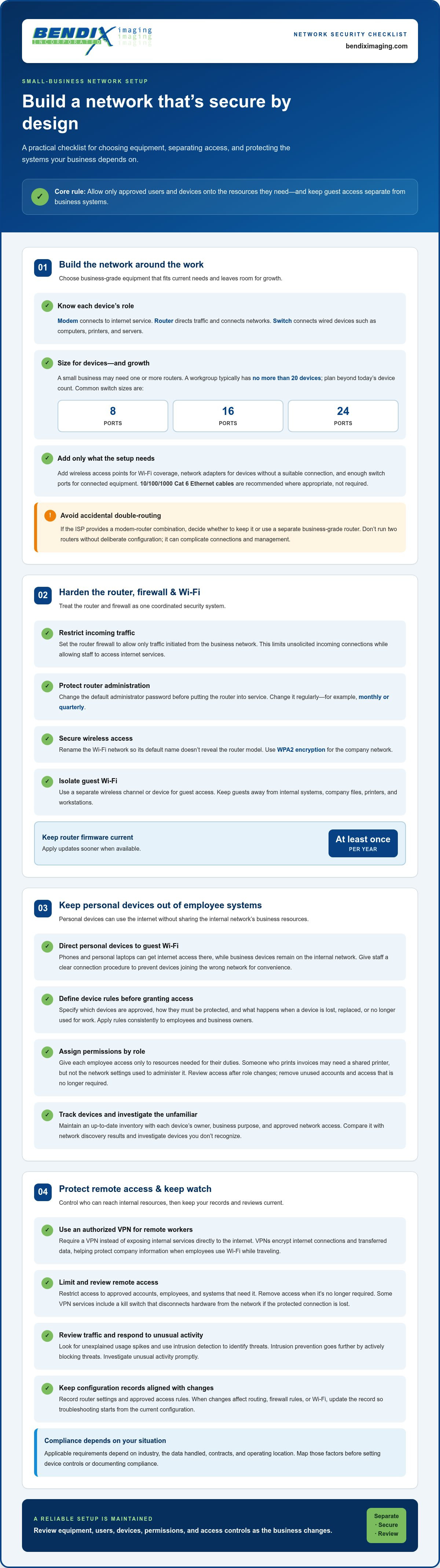
Map the equipment to the work it must support: a modem connects to your internet service, a router directs traffic, and a switch connects wired devices such as computers, printers, and servers. A small business may need one or more routers. A workgroup typically has no more than 20 devices, but plan for growth rather than buying only for today’s count.
Choose a business-grade router and switch that are straightforward to install, use, and manage. Add wireless access points for Wi-Fi coverage, network adapters for devices without a suitable network connection, and enough switch ports for connected equipment. Common switch sizes are 8, 16, and 24 ports. Use 10/100/1000 Cat 6 Ethernet cables where appropriate; they’re recommended, not required.
If your internet service comes through an ISP modem-router combination, decide whether to keep it or use a separate business-grade router. Avoid running two routers without a deliberate configuration, which can complicate connections and network management.
-
Configure Firewalls, Routers, and Secure Wi-Fi
Configure the router firewall to allow only traffic initiated from the business network. This limits unsolicited incoming connections while letting staff access internet services. For a secure business network setup, configure the firewall and router as one system, rather than as separate devices with conflicting rules.
Change the router’s default administrator password before putting it into service, and change it regularly, such as monthly or quarterly. Rename the Wi-Fi network so its default name doesn’t reveal the router model. Use WPA2 encryption for the company network, and separate guest Wi-Fi from internal systems with a separate wireless channel or device.
How should businesses configure firewalls, routers, and secure Wi-Fi? Restrict inbound traffic, protect router administration with a unique password, use WPA2, and isolate guest connections from business devices. Update router firmware at least once per year, and apply updates sooner when available.
-
Secure Remote Access and VPN Connections
Require remote workers to use an authorized VPN instead of exposing internal services directly to the internet. A VPN encrypts internet connections and data transferred over a network, helping protect company information when employees use Wi-Fi while traveling.
Limit remote access to the employees and systems that need it, and remove access when it’s no longer required. To secure VPN connections, use encryption, restrict access to approved accounts, and review who can reach internal resources. Some VPN services include a kill switch that disconnects hardware from the network if the protected connection is lost.
Keep a record of router settings and approved access rules. When a network change affects routing, firewall rules, or Wi-Fi, update the record so future troubleshooting starts with the current configuration.
Keeping personal devices off the employee network
Keep employee systems separate from personal devices, even when both need internet access. A guest network gives phones and personal laptops internet access without placing them alongside business files, printers, or workstations.
What cybersecurity standards and regulations apply to business networks in the United States? The requirements depend on your industry, the data you handle, your contracts, and where you operate. Map those factors before setting device controls or documenting compliance.
To monitor network traffic and detect intrusions, review traffic for unexplained usage spikes and use intrusion detection to identify threats. An intrusion prevention system goes further by actively blocking threats. Establish a consistent review process and investigate unusual activity promptly.
Common business network risks include unapproved personal devices, excessive permissions, and unfamiliar network connections. Reduce exposure by separating guest access, assigning permissions by job role, and investigating devices you don’t recognize.
- Direct personal devices to guest Wi-Fi, not the employee network. Employees can use phones and personal laptops for internet access there, while business devices remain on the internal network. Keep guest access separate from company files, printers, and other work resources. Give staff a clear connection procedure so personal devices don’t end up on the wrong network for convenience.
- Set device requirements before allowing a phone or computer to reach business resources. Define which devices are approved, how they must be protected, and what happens when a device is lost, replaced, or no longer used for work. Apply the rules consistently to employees and business owners. Remove access when someone changes roles or leaves the organization.
- Assign permissions by role, then give each employee access only to the resources needed for their duties. For example, someone who prints invoices may need access to a shared printer, but not the network settings used to administer it. Review permissions after role changes and remove unused accounts. This limits the damage an unattended or compromised account can cause.
- Maintain an up-to-date inventory of connected devices and compare it with network discovery results. Record each device’s owner, business purpose, and approved network access. Investigate an unfamiliar phone, laptop, or printer before it reaches internal resources. Discovery tools show what is connected, but staff still need a process for identifying and responding to unfamiliar devices.
- Use a switch with inline power when network devices need power near their connection points. It can power equipment such as wireless access points through the network cable, reducing the need for separate electrical outlets and wiring. Include access points and other powered equipment in the device inventory, so you can match each connection to a known business purpose.
For businesses handling regulated or sensitive data, regulatory compliance support can help align network access practices with applicable requirements.
Configuring Wi-Fi encryption and guest networks
Separate employee, guest, and IoT traffic so each group can reach only the resources it needs. Use distinct wireless networks, encryption, and access rules to control communication between computers and applications.
-
Select Wi-Fi Encryption Protocols
Review the encryption options in your access point’s wireless settings, then choose WPA2 for the company network. Apply that setting to each access point broadcasting the employee network, not just the primary router. Check that staff computers and business applications can connect using the selected protection. Avoid leaving a business network open or relying on a guest password to protect internal traffic.
For agencies using WLANs to transmit FTI, the Internal Revenue Service requires logical separation between WLANs with different security profiles and from the wired LAN. That separation is a useful configuration principle: distinct network profiles should not share unrestricted access simply because they use the same wireless equipment.
-
Use WPA2 Encryption
Enable WPA2 on the employee Wi-Fi network and set a strong, unique passphrase. Share it only with authorized employees, and change it when access should end, such as after a staff departure. Don’t reuse the router’s administrator password as the Wi-Fi passphrase. Those credentials protect different access points and should remain separate.
Test the network with an employee computer and the applications staff use for work. Confirm that the device joins the intended network and can reach required business resources. Keep guest credentials separate from employee credentials so a visitor’s connection doesn’t expose the company passphrase or internal communications.
-
Segment Employee, Guest, and IoT Networks
Create separate networks for employees, guests, and IoT devices such as connected equipment or wireless printers. Use a separate wireless network or device to isolate guest Wi-Fi from the internal network. This limits which resources each group can reach, rather than treating every connection as trusted.
To segment a business network for employees, guests, and IoT devices, assign each group its own wireless network and restrict access between networks according to business needs. Give guests internet access without internal resources, and let IoT devices communicate only with the systems they require. After installing or changing settings, test connections from each network and confirm devices cannot cross into restricted areas.
Use WPA2 for a company network. An unsecured business WiFi network can expose a business to liability if unauthorized people use it for illegal activities.
Firewall setup and file and printer sharing
Set firewall rules before enabling shared resources. A printer or file share should serve a clear business function without exposing unrelated devices.
- Configure the router firewall to allow only traffic initiated from the business network. This blocks unsolicited incoming connections while allowing employees to connect to approved internet services. Review existing rules and remove those that no longer support a current business function. Don’t disable the firewall to troubleshoot one application; identify the specific connection it needs instead.
- Keep firewall protection active even when business data is stored in the cloud. Cloud storage doesn’t prevent unwanted traffic from reaching computers, printers, or other devices inside the office network. Apply firewall controls at the network edge and on individual computers where available. Test each rule against ordinary work, such as opening a cloud application or sending a document to a shared printer.
- Enable file sharing only on designated file servers. Avoid broad sharing across employee computers, where a shared folder could expose documents to unintended users. Give staff access to the folders required for their work, and remove it when no longer needed. For example, a team folder can serve approved users without making all of a computer’s files visible.
- Limit printer sharing to the users and systems that need each printer. Connect a shared office printer through an approved network location, then test printing from an authorized employee computer. Check that guest devices can’t reach the printer if they should have internet access only. Align printer access rules with its business function instead of allowing every network connection by default.
- Allow only the firewall traffic required for device discovery. For Windows 8, Windows 7, or Windows Vista device discovery, the listed ports are TCP 5357 and TCP 5358. For finding network devices, the listed ports are UDP 1900 and TCP 2869. Open a port only when the related discovery feature is needed, and avoid broad rules that expose services unnecessarily.
- After each firewall or sharing adjustment, verify the change with a connection test. Confirm that an authorized employee can reach the required file server and printers, while an unapproved device cannot. Record the rule, the system it protects, and the business reason for keeping it. If a test fails, review the specific application or device requirement instead of removing protections across the network.
Business-grade networking equipment
Choose hardware that supports your current workload and can scale as devices, users, and applications grow. Update router firmware at least once per year, and install security software updates as they become available.
-
Select Business-Grade Networking Equipment
Match each device to the work it needs to support. A business-grade router handles network traffic, switches connect wired equipment, and access points provide wireless coverage. Check device capacity, coverage, management features, and compatibility before selecting hardware. Home networking equipment may not offer the reliability or room to grow a business needs.
Use Wi-Fi 6 as an upgrade option when an office must handle many devices more efficiently. Wi-Fi 6E is a newer wireless standard that can help manage simultaneous connections in a busy office. Check that computers and mobile devices can use the chosen wireless standard. Pick access points based on office layout and expected connections, not the largest advertised coverage alone.
Plan for power and outages, too. Connect network equipment to a UPS with Automatic Voltage Regulation to protect against power surges and allow graceful shutdowns during outages. Switches with inline power can also power access points at network wall jacks without separate outlets or wires.
Leave room for additional devices and features. A growing business may add mobile equipment, access points, or connected systems that increase network demand. Choose equipment that can accommodate those changes without requiring a complete replacement. Keep an inventory of hardware, locations, and functions so future expansion doesn’t create unmanaged connections.
-
Update Network Equipment and Security Software
Schedule router firmware updates at least once per year, and apply updates sooner when they’re available. Firmware updates maintain the software that controls network hardware. Set a process to review update notices, install approved releases, and test essential connections afterward. Keep a record of the update date and affected device, such as the office router or wireless access point.
Install security software updates when they become available, and ensure business computers receive them. Outdated software can leave known weaknesses unaddressed. Include mobile devices that connect to company resources in the update process. Assign responsibility for updates, then review coverage so an overlooked laptop doesn’t become a weak point.
Before changing equipment, save the current network configuration. Apply updates in a planned sequence, starting with one device when practical, then test internet access, wireless connections, and business applications. If a change disrupts operations, saved settings help restore the previous configuration. Review update records during routine cybersecurity checks.
Need a clearer equipment and update plan? Get support for network security tailored to your business hardware and security needs.
BENDIX imaging: Artificial Intelligence (AI) Consulting
BENDIX imaging helps businesses manage network and security needs through Network Security, Cyber Security, and Managed IT Services. Turn to the team when firewall rules, device access, equipment updates, or ongoing network oversight become difficult to manage internally. These services can help assess your current setup, identify practical security priorities, and manage the technology that supports daily work.
If you’re planning network changes or strengthening protections for connected devices, BENDIX imaging can help clarify the next steps. Artificial Intelligence (AI) Consulting is also available when you’re evaluating how AI fits your business operations.
Contact BENDIX imaging or visit bendiximaging.com to discuss your business network needs.
Make network security part of your operating plan
A secure business network setup isn’t a one-time project. As your team, tools, and workflows change, revisit who needs access, which systems support essential work, and where security responsibilities sit. A clear review process helps business owners spot gaps before they become routine.
If your team needs help turning network concerns into a practical plan, BENDIX imaging offers Cyber Security and Managed IT Services. Its Artificial Intelligence (AI) Consulting can also help you assess how AI could fit your business operations. Start with a focused conversation about your priorities, current challenges, and what you want your network to support.
Contact BENDIX imaging to discuss a practical path forward for your business technology. Take the next step with a plan built around the way your team works.
Frequently Asked Questions
What do I need for a small business computer network?
For small businesses in Watertown, Brookings, Sioux Falls, Huron, and Montevideo, start by listing each device and whether it needs wired access, Wi-Fi, or both. Then compare the list with your office layout and the bandwidth needed for cloud applications, calls, and file transfers. You’ll need an internet connection, a modem, a router, and network connections suited to your computers, printers, and wireless devices.
What are the steps to set up a secure business network?
Plan the network, install equipment, configure access controls, and test connections before relying on them for daily work. Document devices, users, and essential applications. Configure separate access for staff and visitors, then test a typical task on each connection type. Store administrator details securely, keep a copy of the network configuration, and assign responsibility for reviewing changes and security updates.
What network hardware does a small business need, and how much does it cost?
Most small businesses need a modem, router, switch, Wi-Fi access points, and suitable cables or network adapters. The figures cover router categories, not the complete network. The total depends on device count, office coverage, cabling, and power protection.
What are the best practices for business network passwords, MFA, and access control?
Use unique passwords for router administration, employee accounts, and Wi-Fi, and store them in an approved password manager. Enable multi-factor authentication (MFA) for accounts that support it, especially administrator and remote-access accounts. Give each employee an individual login instead of sharing credentials, and grant only the access their role requires. Remove or change access promptly when responsibilities change or an employee leaves.
{"@context":"https://schema.org","@type":"FAQPage","mainEntity":[{"@type":"Question","name":"What do I need for a small business computer network?","acceptedAnswer":{"@type":"Answer","text":"For small businesses in Watertown, Brookings, Sioux Falls, Huron, and Montevideo, start by listing each device and whether it needs wired access, Wi-Fi, or both. Then compare the list with your office layout and the bandwidth needed for cloud applications, calls, and file transfers. You’ll need an internet connection, a modem, a router, and network connections suited to your computers, printers, and wireless devices."}},{"@type":"Question","name":"What are the steps to set up a secure business network?","acceptedAnswer":{"@type":"Answer","text":"Plan the network, install equipment, configure access controls, and test connections before relying on them for daily work. Document devices, users, and essential applications. Configure separate access for staff and visitors, then test a typical task on each connection type. Store administrator details securely, keep a copy of the network configuration, and assign responsibility for reviewing changes and security updates."}},{"@type":"Question","name":"What network hardware does a small business need, and how much does it cost?","acceptedAnswer":{"@type":"Answer","text":"Most small businesses need a modem, router, switch, Wi-Fi access points, and suitable cables or network adapters. The figures cover router categories, not the complete network. The total depends on device count, office coverage, cabling, and power protection."}},{"@type":"Question","name":"What are the best practices for business network passwords, MFA, and access control?","acceptedAnswer":{"@type":"Answer","text":"Use unique passwords for router administration, employee accounts, and Wi-Fi, and store them in an approved password manager. Enable multi-factor authentication (MFA) for accounts that support it, especially administrator and remote-access accounts. Give each employee an individual login instead of sharing credentials, and grant only the access their role requires. Remove or change access promptly when responsibilities change or an employee leaves."}}]}


