

Enrollment is the beginning, not the finish. A practical multi-factor authentication setup for a business requires a second verification factor for business accounts and methods that fit the organization’s security policies. SMS or email codes can be relatively easy to roll out, but attackers may bypass SMS or voice codes through SIM swapping.
It makes sense to enable MFA first, but the method you choose affects how people sign in, what happens when they lose access, and how well the setup supports your security and compliance needs. The work doesn’t end when the first login succeeds.
Learn how to compare authentication factor categories, roll out MFA in a controlled way, and account for compliance and cyber insurance requirements. You’ll also see what to do after setup, from testing sign-ins and recovery options to keeping access aligned with changing roles. A secure process should protect the business without leaving employees stranded when a device or verification method is unavailable.
Key Takeaways
- Match authentication methods to the sensitivity of each account and the needs of the people using it.
- Compare factor categories before choosing a method, and consider how each affects sign-in security and recovery.
- Review applicable compliance and cyber insurance requirements so your MFA plan addresses the right expectations.
- After rollout, test sign-ins and recovery processes, then keep access current as roles and devices change.
Compliance and cyber insurance requirements
Map MFA controls to your contracts, sensitive data, insurer requirements, and administrative access. Document the settings, then test that they work as intended.
- Review applicable requirements before selecting authentication controls. CMMC 2.0 calls for phishing-resistant MFA for federal contractors handling sensitive government data. HIPAA identifies MFA as a recommended best practice for protecting electronic protected health information. Record which systems store or access that information, then match the required protection to those accounts.
- Compare business MFA providers by authentication options, administrator controls, reporting, recovery processes, and compatibility with existing sign-in systems. For growing companies navigating these choices, outsourced IT providers like JOB Technologies can help evaluate tools that fit operational workflows. MFA options range from free to per-user pricing models, so compare what each plan includes and how charges scale with users and features. Assess these controls against cyber insurance application questions and policy conditions.
-
Set Up MFA and Avoid Common Mistakes
Enable MFA for administrator accounts first, then extend it to employees and business applications. Test enrollment, sign-in, and account recovery before a broader rollout. Configure backup codes and store them securely, apart from the protected account. Define a lost-device process that verifies identity before restoring access. Avoid shared accounts, untested recovery routes, and permanent exceptions that leave privileged access unprotected.
-
Enforce MFA Across Access Policies
Use single sign-on to apply consistent MFA rules across connected applications. Configure conditional access to require stronger verification for sensitive systems or unusual sign-ins. Apply device policies that distinguish approved business devices from others, and test the rules with administrator and employee accounts. Managed IT and security providers such as Networking2000 can also assist in verifying that access policies do not create an easy bypass through legacy sign-ins or unmanaged applications.
Document each exception, its owner, and its business reason. Review exceptions as roles and access needs change.
An incident underscores the importance of enabling MFA: The official Twitter account of the U.S. Securities and Exchange Commission was compromised in 2024 when MFA was not enabled. Treat this as a reminder to verify that MFA is active on every relevant account, including high-visibility accounts, and confirm that recovery and exception settings do not leave an unprotected route to access.
Authentication factor categories
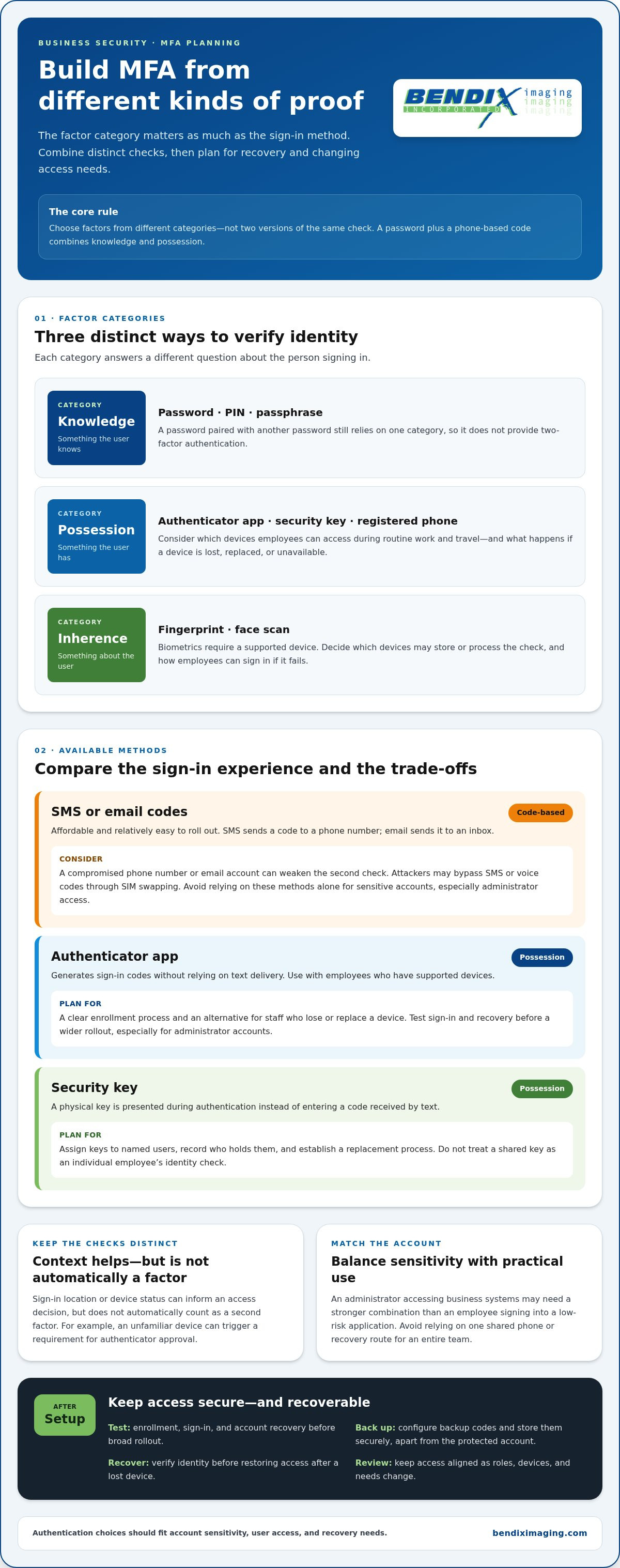
Choose factors from different categories, not two versions of the same check. For example, a password plus a phone-based code combines knowledge and possession.
- Identify knowledge factors, or something the user knows. A password, PIN, or passphrase fits this category. Pairing one password with another still relies on a single category, so it doesn’t provide two-factor authentication. Keep knowledge checks distinct from the device or biometric used for another factor.
- Choose possession factors, or something the user has. Examples include an authenticator app, a security key, or a registered phone that receives a code. Consider which devices employees can access during routine work and travel. Define what happens if a device is lost, replaced, or unavailable, so possession checks don’t become a route to account lockout.
- Assess inherence factors, or something about the user. A fingerprint or face scan can verify identity through a supported device. Treat these as a separate category from passwords and phones. Before enabling biometrics, decide which devices may store or process the biometric check and how employees can sign in if that option fails.
- Separate authentication factors from contextual signals. A sign-in location or device status can inform an access decision, but it isn’t automatically a second factor. For example, a policy might require authenticator approval when a sign-in comes from an unfamiliar device. Keep the identity checks themselves clear in your access design.
- Match factor combinations to account sensitivity and practical use. An administrator accessing business systems may need a stronger combination than an employee signing into a low-risk application. Avoid relying on one shared phone or one recovery route for an entire team. For help connecting authentication choices with broader business security planning, consider how each factor fits existing controls.
Available authentication methods
SMS- or email-based two-factor authentication is affordable and relatively easy to roll out. Attackers may bypass SMS or voice codes through SIM swapping, so avoid relying on them alone for sensitive accounts.
- Compare code-based methods with the sensitivity of the account. SMS sends a sign-in code to a phone number, while email sends it to an inbox. Both can make enrollment straightforward, but a compromised phone number or email account can weaken the second check. Consider these methods for lower-risk access, rather than as the default for administrators.
- Evaluate authenticator apps for employees who use supported devices. These apps generate sign-in codes without relying on text delivery. Set a clear enrollment process and provide an alternative for staff who lose or replace a device. Test sign-in and recovery before a wider rollout, especially for administrator accounts.
- Consider security keys for accounts that need a stronger sign-in method. During authentication, the user presents a physical key instead of entering a code received by text. Assign keys to named users, record who holds them, and establish a replacement process. Don’t treat a shared key as an individual employee’s identity check.
- Give contractors individual accounts and choose methods they can use for their assigned work. For employees without smartphones, consider a security key or another supported option that doesn’t depend on a mobile app. Tie the method to each person, and remove access when a contract or role ends.
- Handle service accounts separately from employee sign-ins. Automated services may not have a person available to approve a prompt, so use a supported noninteractive identity method and restrict its permissions. Track the account owner, purpose, and systems it can access. Review unused accounts and credentials, and remove access that no longer supports a business process.
How to set up multi-factor authentication for a business step by step
- Inventory the accounts and applications your staff use, including email, file storage, payroll, remote access, administrator consoles, and cloud services. Record each account’s owner, business purpose, and data accessed. A multi-factor authentication setup for business should start with this inventory, which can reveal overlooked logins such as old vendor accounts or separate administrator profiles.
- Prioritize access by impact. Start with administrator accounts and systems holding sensitive business or customer information. Identify who approves access to each account and who removes it when someone changes roles. Clear ownership helps prevent accounts from remaining active after a contractor’s assignment ends.
- Set the policy in your identity or application controls. Decide which accounts require MFA, which methods are allowed, and how exceptions are documented. Apply consistent rules across connected applications rather than configuring each one differently. Tie every exception to a named owner and a specific business reason.
- Test the configuration with a small employee group before a broader rollout. Include an administrator, a standard user, and someone who uses remote access. Confirm that each person can sign in to required applications. Record failed prompts, confusing instructions, and access gaps, then fix them before expanding enrollment.
- Roll out enrollment with clear instructions for each role. Explain which sign-in screen employees should expect and where to report a blocked login. Track enrollment and unresolved access issues in one place. Treat the multi-factor authentication setup for business as incomplete until affected users can authenticate to the applications they need.
- Review sign-in activity and access changes after deployment. Look for accounts outside the policy, repeated failed attempts, and exceptions that no longer serve a business need. Update access when employees change roles or leave. For help aligning rollout steps with business security controls, get help planning your MFA rollout.
BENDIX imaging: Artificial Intelligence (AI) Consulting
BENDIX imaging provides Cyber Security and Managed IT Services for businesses strengthening account access and security practices. Turn to these services when MFA policies need to work alongside wider IT controls, applications, and employee access needs. A coordinated review can help identify how authentication fits into your existing security approach.
Artificial Intelligence (AI) Consulting helps businesses consider AI tools as part of their technology environment. As employees use business applications, account access and security policies remain important to manage. BENDIX imaging also provides Network Security to support a broader approach to protecting business systems.
If you’re ready to discuss how MFA fits your business security priorities, contact BENDIX imaging.
Make authentication part of ongoing security
MFA should remain part of how your business manages access, not a one-time technology task. As teams, applications, and responsibilities change, assign clear ownership for reviewing authentication policies and keeping access aligned with current work. Ongoing attention helps prevent yesterday’s decisions from becoming tomorrow’s blind spots.
A sound multi-factor authentication setup for business should also fit the organization’s broader security priorities. BENDIX imaging provides Cyber Security and Managed IT Services, alongside Artificial Intelligence (AI) Consulting. These services can support businesses as they assess how authentication fits their technology and security approach.
Choose a next step that matches your needs. If you’re ready to discuss MFA or broader business security, contact BENDIX imaging. Take action with a clear plan, and build stronger access practices into the way your business operates.
Frequently Asked Questions
What happens after setup?
After MFA is enabled, sign-ins follow the selected verification process, and administrators should watch for access problems. Treat changes in staff, devices, and applications as prompts to review account access. If an employee reports an unexpected approval request, follow your security incident process rather than approving it automatically. Clear reporting instructions help staff distinguish routine login issues from suspicious activity.
What is MFA?
MFA, or multi-factor authentication, requires a user to verify their identity using more than one distinct factor. For example, a password and a fingerprint rely on different categories, while a password followed by another password does not. This distinction helps teams determine whether a login adds an independent check rather than merely requesting another piece of information.
Which MFA methods are best for business employees: authenticator apps, passkeys, hardware keys, or SMS?
The right fit depends on account risk, available devices, and recovery needs. Authenticator apps can suit employees who use supported phones, while hardware keys provide a physical sign-in option. Passkeys use a device-based sign-in credential, whereas SMS depends on a phone number. Compare each method with the applications employees use, and plan how they can regain access if a device is unavailable.
What MFA requirements apply to US businesses by industry or regulation?
Requirements depend on the organization’s contracts, data, and applicable rules. CMMC 2.0 calls for phishing-resistant MFA for federal contractors handling sensitive government data. HIPAA identifies MFA as a recommended best practice for protecting electronic protected health information, not a universal requirement for every business. Cyber insurance conditions can also vary, so compare policy language with the controls protecting covered systems.
{"@context":"https://schema.org","@type":"FAQPage","mainEntity":[{"@type":"Question","name":"What happens after setup?","acceptedAnswer":{"@type":"Answer","text":"After MFA is enabled, sign-ins follow the selected verification process, and administrators should watch for access problems. Treat changes in staff, devices, and applications as prompts to review account access. If an employee reports an unexpected approval request, follow your security incident process rather than approving it automatically. Clear reporting instructions help staff distinguish routine login issues from suspicious activity."}},{"@type":"Question","name":"What is MFA?","acceptedAnswer":{"@type":"Answer","text":"MFA, or multi-factor authentication, requires a user to verify their identity using more than one distinct factor. For example, a password and a fingerprint rely on different categories, while a password followed by another password does not. This distinction helps teams determine whether a login adds an independent check rather than merely requesting another piece of information."}},{"@type":"Question","name":"Which MFA methods are best for business employees: authenticator apps, passkeys, hardware keys, or SMS?","acceptedAnswer":{"@type":"Answer","text":"The right fit depends on account risk, available devices, and recovery needs. Authenticator apps can suit employees who use supported phones, while hardware keys provide a physical sign-in option. Passkeys use a device-based sign-in credential, whereas SMS depends on a phone number. Compare each method with the applications employees use, and plan how they can regain access if a device is unavailable."}},{"@type":"Question","name":"What MFA requirements apply to US businesses by industry or regulation?","acceptedAnswer":{"@type":"Answer","text":"Requirements depend on the organization’s contracts, data, and applicable rules. CMMC 2.0 calls for phishing-resistant MFA for federal contractors handling sensitive government data. HIPAA identifies MFA as a recommended best practice for protecting electronic protected health information, not a universal requirement for every business. Cyber insurance conditions can also vary, so compare policy language with the controls protecting covered systems."}}]}


